
Peloton Bike+ Wi-Fi Connectivity Problems: Causes and Fixes
Few frustrations rival a buffering workout when you are in the zone—especially on a premium machine like the Peloton Bike+. Intermittent Wi-Fi drops or outright connection failures can turn a seamless ride into a stress test, but the root causes are often straightforward. This guide dissects why your Bike+ keeps losing its network link and offers step-by-step fixes to get you back on the leaderboard.
Why Does My Peloton Bike+ Keep Disconnecting from Wi‑Fi?
Wi‑Fi drops on the Bike+ usually stem from signal interference, router placement, or the Bike+’s dual‑band preference glitching. The touchscreen runs Android underneath, and like many smart devices, it can struggle with crowded 2.4 GHz channels or flaky 5 GHz handoffs. Other culprits include outdated router firmware, power‑saving settings on the bike, or the sheer distance between the bike and your access point.
Before digging deeper, run a quick test: navigate to Settings → Network → Test Wi‑Fi and note the signal strength. If it shows “Weak” or “Fair,” physical positioning is almost certainly the issue. For more stubborn cases, a router upgrade or mesh network might be necessary, but we will start with the simple fixes.
If you have also noticed the screen acting oddly, our guide on Peloton Bike+ Touchscreen Glitches: Common Problems and Easy Fixes may help isolate whether the Wi‑Fi chip or screen is the culprit.
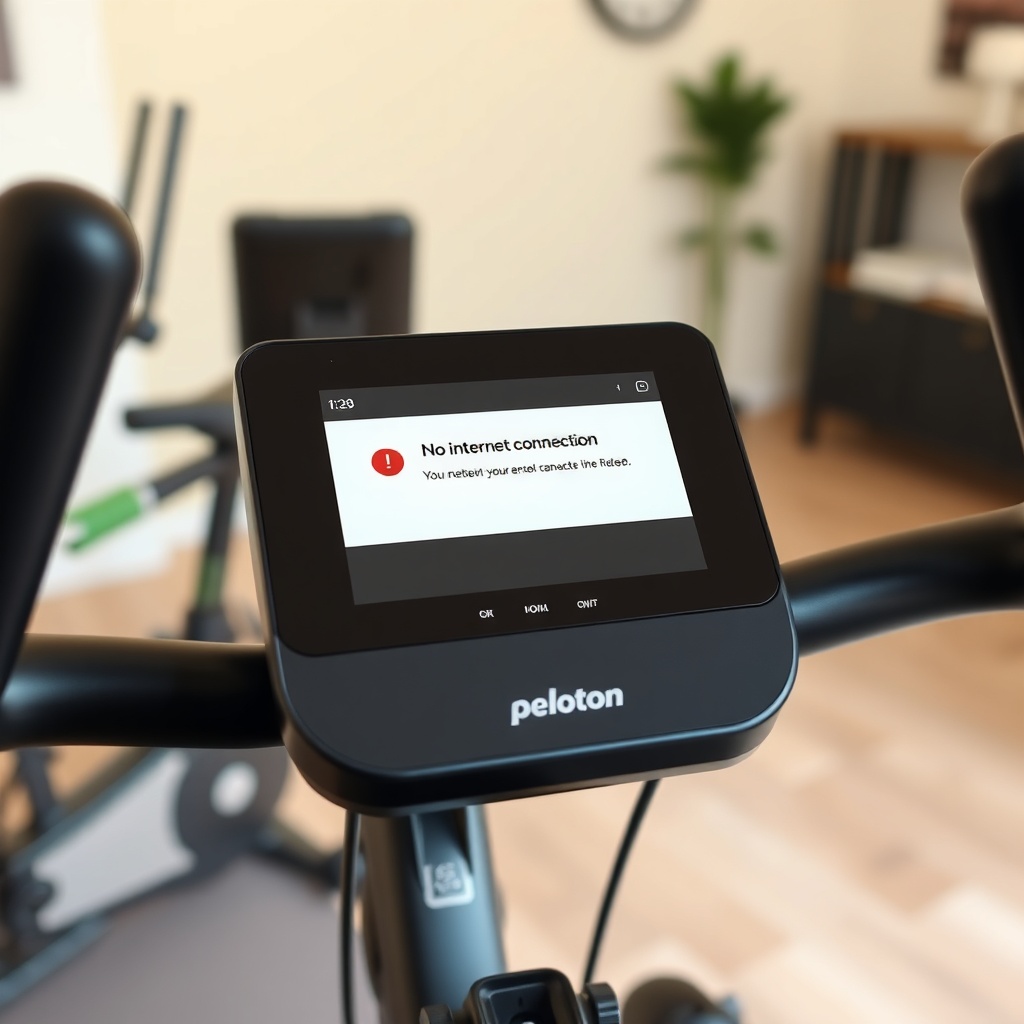
How Do I Fix a Peloton Bike+ That Won’t Connect to Wi‑Fi at All?
A total connection failure means the Bike+ cannot see your network—or sees it but refuses to join. Here is a systematic checklist:
- Restart both devices: Power‑cycle the Bike+ (hold the power button for 10 seconds) and unplug your router for 30 seconds. This clears many temporary glitches.
- Forget and re‑add the network: Go to Settings → Network → Wi‑Fi → Your Network Name → Forget. Then re‑enter the password.
- Check for hidden SSIDs: The Bike+ may not detect networks with hidden SSIDs. Temporarily unhide the SSID, connect, then you can re‑hide it later.
- Switch bands manually: If your router broadcasts both 2.4 GHz and 5 GHz, try forcing the Bike+ to use the 2.4 GHz band by temporarily turning off 5 GHz in the router settings. The 2.4 GHz band penetrates walls better.
- Update the Bike+ firmware: Go to Settings → System → System Update. Peloton often ships Wi‑Fi stability patches.
Still no luck? Reset network settings: Settings → Network → Reset Network Settings. This wipes saved passwords but can clear corrupted configuration data. If the issue persists, your Bike+ Wi‑Fi antenna might be defective—a warranty claim may be necessary.
Does Router Distance or Obstruction Affect the Peloton Bike+?
Absolutely. The Bike+ uses a small internal antenna, and while it is decent, it cannot compete with a laptop or phone. Concrete walls, metal gym equipment, and even large mirrors can attenuate the signal. If your bike is in a basement or far from the router, a few simple adjustments can make a world of difference:
- Move the router: Ideally within 30 feet (9 metres) of the bike, with minimal walls in between. Even raising the router off the floor improves range.
- Use a Wi‑Fi extender or mesh system: A dedicated extender placed halfway between the router and bike works well. Mesh systems like eero or Google Nest Wi‑Fi provide seamless roaming.
- Check interference: Cordless phones, baby monitors, and microwave ovens all emit signal noise. Keep these away from both the bike and router.
| Obstruction Type | Signal Attenuation | Recommendation |
|---|---|---|
| Concrete wall (single) | Medium‑High | Move router to same room or use powerline adapter |
| Metal rack/weights | High | Reposition bike at least 1 metre from metal objects |
| Large mirror / glass | Low‑Medium | Usually not a problem unless coated with metallic film |
| Wooden floor/stud wall | Low | Rarely an issue |
For riders who also experience audio sync issues alongside dropped connections, check our piece on Peloton Bike+ Sound System Issues: Audio Cutting Out and Fixes—sometimes the two symptoms share a Wi‑Fi root cause.
Is There a Known Bug in the Peloton Bike+ Wi‑Fi Chipset?
Over the years, Peloton has acknowledged sporadic Wi‑Fi chipset bugs, particularly in early Bike+ models (2020–2021). These units used a Broadcom BCM4335 chip that could struggle with certain routers, especially those broadcasting on DFS (Dynamic Frequency Selection) channels on the 5 GHz band. Symptoms include intermittent disconnections every 10–15 minutes or failure to reconnect after sleep mode.
- Check your router’s channel: Avoid DFS channels (52–144 on 5 GHz). Set your router to a non‑DFS channel (36–48, 149–165) in the router admin panel.
- Update router firmware: Older router firmware can cause compatibility mismatches. Check with your ISP or router manufacturer.
- Contact Peloton Support: If the problem is consistent and you have a serial number from the affected period, Peloton may offer a free Wi‑Fi dongle or service repair.
Note: Some owners have reported that using a USB‑C to Ethernet adapter (the Bike+ has a USB‑C port) resolves the issue entirely, though it tethers the bike to a cable.
Will a Factory Reset Fix Wi‑Fi Problems on the Peloton Bike+?
A factory reset can be a nuclear option—and it often works when all else fails. It restores the touchscreen to its out‑of‑box state, clearing any corrupted network profiles or system files. However, it also wipes your login, workout history (if not synced to the cloud), and personal settings.
- Before you reset: Ensure your workout history is synced by taking a class and checking the Peloton app on your phone. Also note your Peloton username and password.
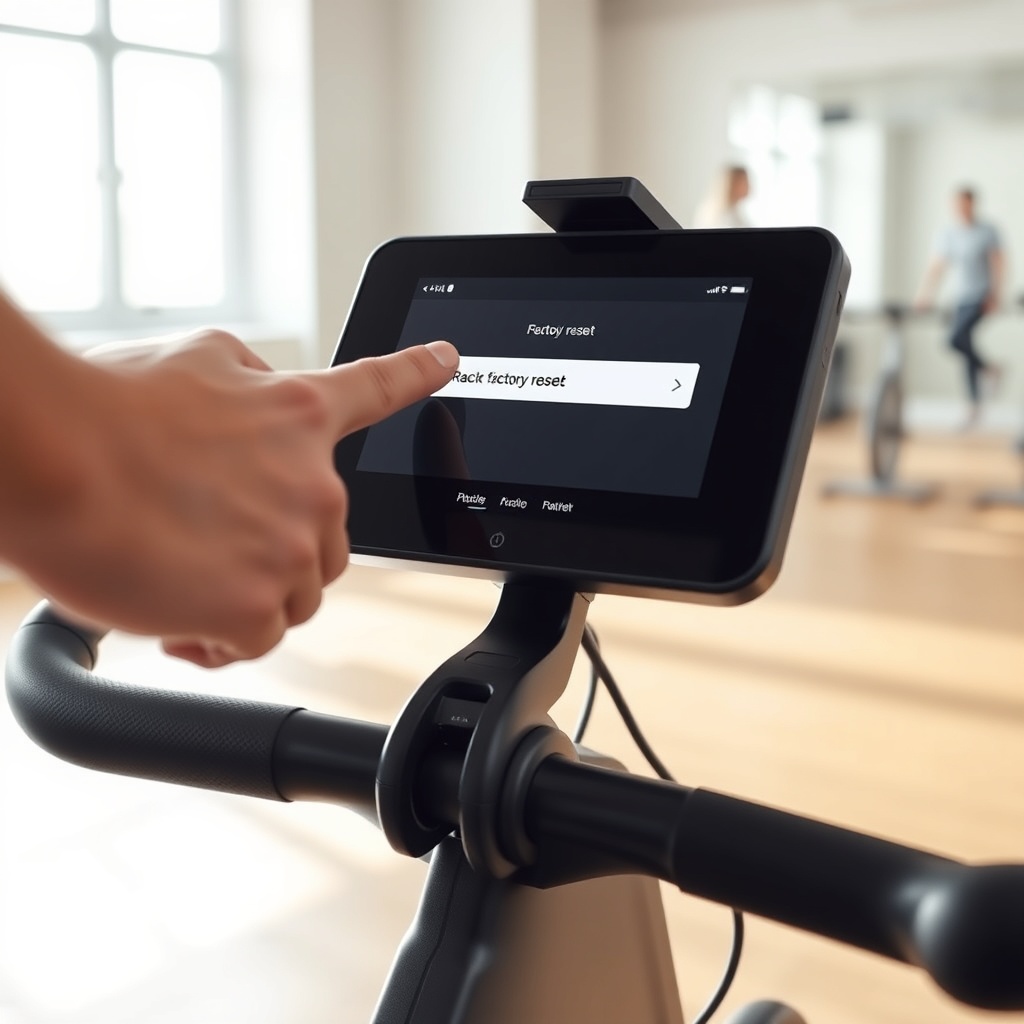
- How to factory reset: Go to Settings → System → Factory Reset. Confirm the prompt and wait 5–10 minutes while the bike reboots.
- After reset: Set up Wi‑Fi as a new device. Fresh configuration often resolves deep‑seated IP conflicts.
If you have already adjusted the riding position—covered in Peloton Bike+ Handlebar Adjustment: Finding Your Perfect Riding Position—you will need to re‑enter those preferences post‑reset.
What Owners Say About Peloton Bike+ Wi‑Fi Issues
Feedback from Peloton Bike+ owners on forums and review sites paints a mixed picture. On the positive side, most riders report that Wi‑Fi works reliably after removing physical obstructions or switching to 2.4 GHz. However, a vocal minority experiences recurring drops that support cannot fully resolve.
- Common praise: “After moving the router into the same room, the connection has been rock solid for six months.” — Bike+ owner, 2023
- Frequent frustration: “My Bike+ drops Wi‑Fi exactly 15 minutes into every ride. Support sent a replacement screen, and it still happens.” — Reddit user, r/pelotoncycle
- Workaround wins: “I bought a cheap Wi‑Fi extender and plugged it right behind the bike. Problem solved.” — Peloton community member
- Warranty experiences: Several owners who insisted on hardware replacement received a new Bike+ main board or a USB Wi‑Fi adapter from Peloton, resolving the problem.
Overall, the consensus suggests that while the Bike+ is not immune to Wi‑Fi gremlins, most issues yield to careful troubleshooting. A tiny subset of units may have faulty antennas or chipsets that require professional service.
Frequently Asked Questions
Q1: Why does my Peloton Bike+ keep losing Wi‑Fi during rides?
This is often caused by signal interference or the Bike+ switching between 2.4 GHz and 5 GHz bands. Disable band steering in your router settings or set the router to 2.4 GHz only. Also, ensure the bike is not near large metal objects.
Q2: Will a wired Ethernet connection work on the Peloton Bike+?
Yes, the Peloton Bike+ has a USB‑C port that supports Ethernet adapters. Use a USB‑C to Ethernet adapter (with a USB‑C hub if needed) and plug into your router. This bypasses Wi‑Fi entirely and is the most stable option.
Q3: Does my Peloton Bike+ Wi‑Fi problem mean the screen needs replacement?
Usually not. Wi‑Fi problems are more often due to router or environment issues. However, if you also see screen glitches, refer to Peloton Bike+ Screen Flickering: Troubleshooting Guide for Touchscreen Issues to rule out hardware failure.
Q4: Can a VPN or ad‑blocker affect Peloton Bike+ Wi‑Fi?
Indirectly, yes. If your router runs a VPN or DNS‑based ad‑blocker (like Pi‑hole), it might interfere with the Bike+ streaming servers. Whitelist the domains pelotoncycle.com and cdns.pelotoncycle.com in your ad‑blocker.
Q5: How do I check if my Peloton Bike+ Wi‑Fi antenna is faulty?
Go to Settings → Network and look at the signal strength indicator. If it shows “Strong” but the connection still drops, the antenna is likely fine and the issue is elsewhere. A persistently “Weak” signal despite moving the router close suggests a hardware fault.
Q6: Is the Peloton Bike+ Wi‑Fi covered under the standard warranty?
Yes, Peloton’s standard warranty covers hardware defects for 12 months (or longer in some regions). Wi‑Fi chipset or antenna failures are covered. Contact Peloton Support and explain the troubleshooting steps you have taken.